From paper diary to online booking in 7 steps
Bookings in a notebook, clients in your DMs, the schedule in the receptionist's head? Move to online booking in 7 steps without losing a single client.

In many salons the day starts like this: the receptionist opens the notebook, checks the Instagram DMs, listens to the voice notes on WhatsApp, and pieces together the day’s schedule in their head from those three sources. When a stylist calls in sick or a client moves their time, a line goes through the entry, a new time is squeezed in next to it, and a week later nobody can read that page.
A notebook isn’t bad — it’s simple, it works without internet and everyone understands it. The problem is that it’s in one person’s hands and only works while the salon is open. Your client, meanwhile, wants to book at 11 pm.
Switching is scary because the salon has to keep running. The seven steps below let you do it gradually, without losing a single appointment. Each step takes a day or two; there’s no need to rush.
Step 1 — Write down how things work today
Before you touch any software, describe how your salon runs on a single page:
- Which services do you offer, and how long does each one take?
- How many stylists do you have, and who does which service?
- Opening hours, lunch breaks, days off.
- Where do bookings come from right now: phone calls, DMs, WhatsApp, walk-ins?
You need this list to set up the system, and it’s often the first time you notice that the same service is being sold under three different names at three different prices. Sort that out right here.
Step 2 — Clean up your service list
Your service list is the foundation of online booking. Every service needs three things: a clear name, a duration and a price.
A few rules:
- Use names the client understands: “Cut + blow-dry”, “Gel polish (hands)”. Not in-house jargon.
- Set durations to match reality, not the ideal. If a service that takes 45 minutes is listed as 30, everything will run late by the end of the day.
- Split services that vary by length or volume into variants: “Colouring (short hair)”, “Colouring (long hair)”.
- Open only your best sellers for online booking. Complex and rare services can stay phone-only at first.
Step 3 — Set up your team and schedules
Now add each stylist to the system, along with:
- the services they can do,
- their weekly working hours and breaks,
- any known exceptions (holidays, days off).
This step matters because the online booking link only shows slots that are free according to the schedule. If the schedule is wrong, clients will book times when the stylist isn’t there.
At the same time, decide who sees what. The receptionist needs the calendar and the till; a stylist often needs only their own appointments. You don’t have to expose client phone numbers and finances to everyone.
Step 4 — Move your client list
Right now your client list lives in several places: the phone’s contacts, the back pages of the notebook, WhatsApp. You don’t have to move it all in one day.
A practical order:
- Start with phone contacts — if the salon has a work phone, the biggest list is there.
- Add the last three months’ clients by hand: name, phone, birthday (if you know it) and a short note (“sensitive skin”, “only sees Aynur”).
- Add the rest as they come in — every new appointment creates the client card by itself.
Pay special attention to birthdays: you’ll need them later for automatic greetings.
Step 5 — Run both in parallel for two weeks
Don’t throw the notebook away overnight. For the first two weeks, record every appointment both in the notebook and in the system. It looks like double work, but it gives you three things:
- the team gets used to the system, while the notebook stays as a backup in case of mistakes;
- appointments already booked for future dates get moved into the calendar;
- schedule errors come to light (the stylist actually starts at 12:00 on Fridays, and so on).
If, after two weeks, there isn’t a single appointment in the notebook that’s missing from the system — close the notebook.
Step 6 — Put the link everywhere
Once the system is set up, place your online booking link everywhere clients look:
- Your Instagram bio — the first and most important place. More detail: How to add a booking link to your Instagram bio.
- Stories — with a link sticker, plus a separate “Booking” highlight.
- Your WhatsApp Business profile and its automatic greeting message.
- The “website” field of your Google Maps profile.
- At the end of every DM reply: “You can pick a time that suits you here”.
For the first few weeks, run in manual approval mode: you check and confirm each new online booking. Once you trust the system, switch to automatic approval.
Step 7 — Tell your clients and switch on reminders
Regular clients should hear the news from you. A short message is enough: “You can now book with us online — see the free slots and pick one yourself: [link]”.
Then switch on the automatic messages:
- a confirmation when an appointment is booked,
- a reminder a few hours before the appointment,
- a birthday greeting.
For ready-made wording: WhatsApp reminder messages — 10 ready-made templates. Reminders also cut the number of clients who don’t show up — we cover that in 6 ways to reduce no-shows.
The 4 most common mistakes when switching
Doing it all in one day. The salon that closes the notebook on Monday morning and moves to the system is in chaos by lunchtime: the schedule is wrong, a stylist has forgotten their password, future appointments haven’t been moved. Spread the steps over a week or two.
Leaving the team out. If only the owner sets up the system and tells the stylists “from tomorrow we work in here”, the stylists slip back into old habits. Hold at least one meeting where everyone opens their own schedule and appointments on their phone.
Hiding the link. The link is set up, but it’s not in your Instagram bio and nobody sends it in DMs. Clients don’t know it exists and keep booking the old way.
Leaving client cards empty. A card with only a name and phone number tells you nothing a month later. A short note, a birthday and a tag become the basis for campaigns and reminders down the line.
What to look at after the first month
To see whether the switch is working, answer four questions:
- How many appointments came in through the online link?
- How many of those were made while the salon was closed?
- Has the time the receptionist spends on DMs and calls gone down?
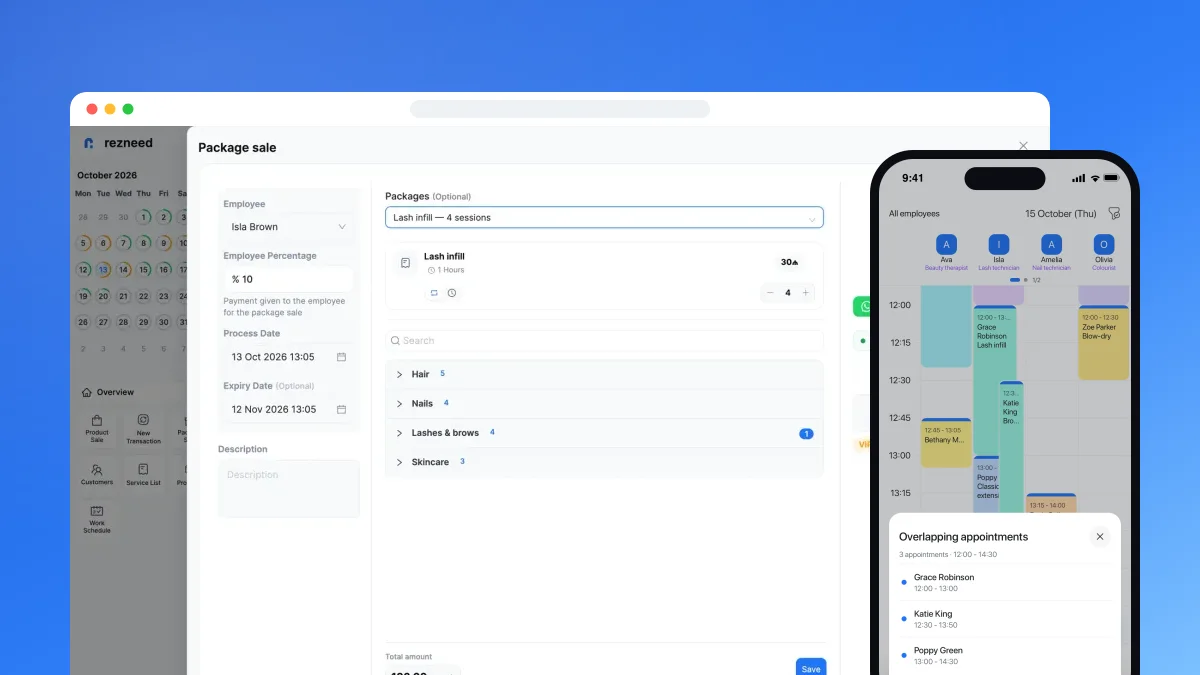
- Were there any clashes (two bookings in the same slot)?
The numbers should come from your own salon — someone else’s statistics tell you little. If online bookings are low, the usual reason is that the link isn’t visible: mention it more often in your bio, Stories and DM replies.
What this switch looks like with Rezneed
When you sign up, you choose your business type and pick what fits from 281 ready-made service templates — no need to write the list from scratch, you just adjust durations and prices. Stylists, schedules, breaks and exceptions are set up in the team section; 4 roles and 13 per-person permissions decide who sees what.
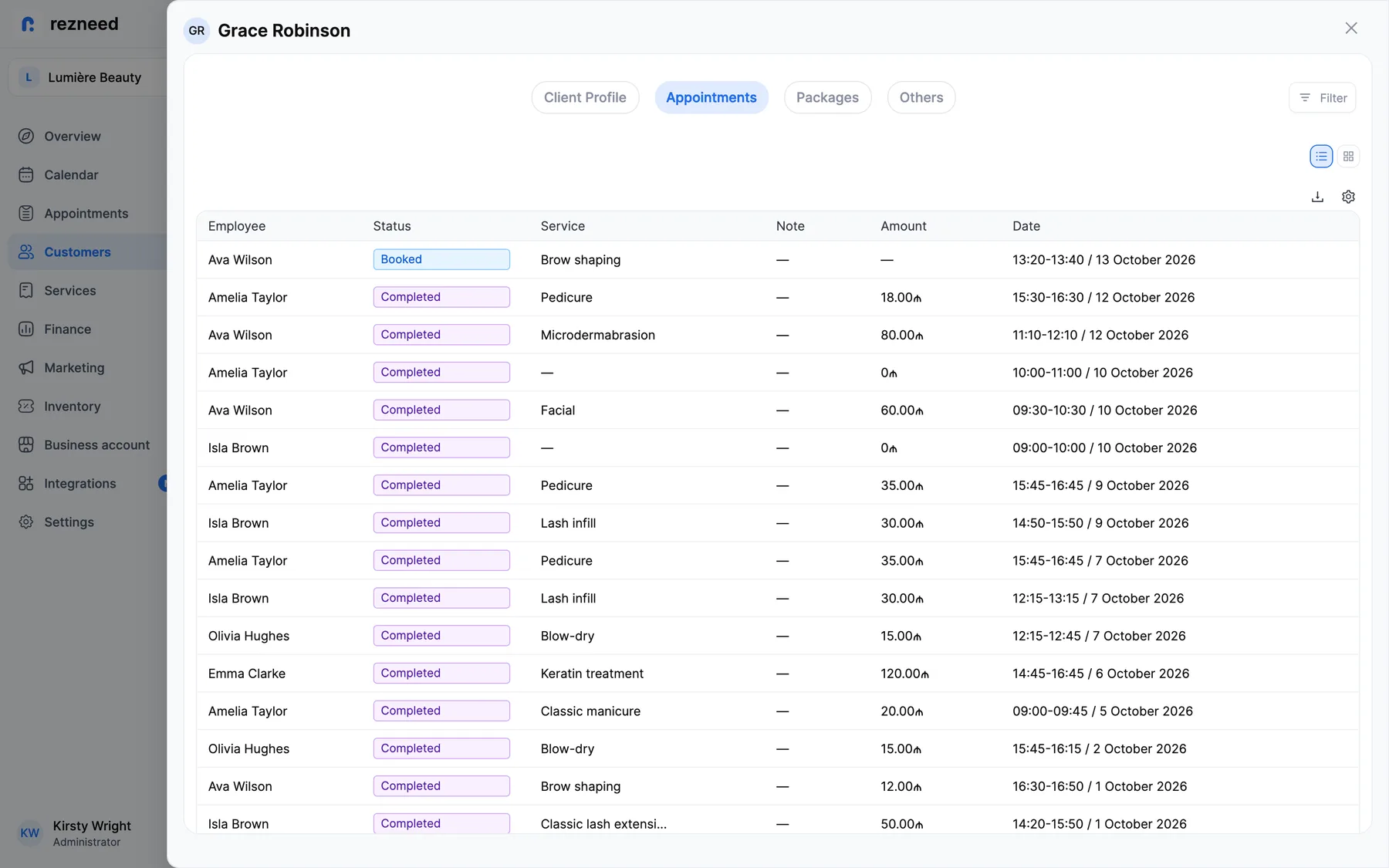
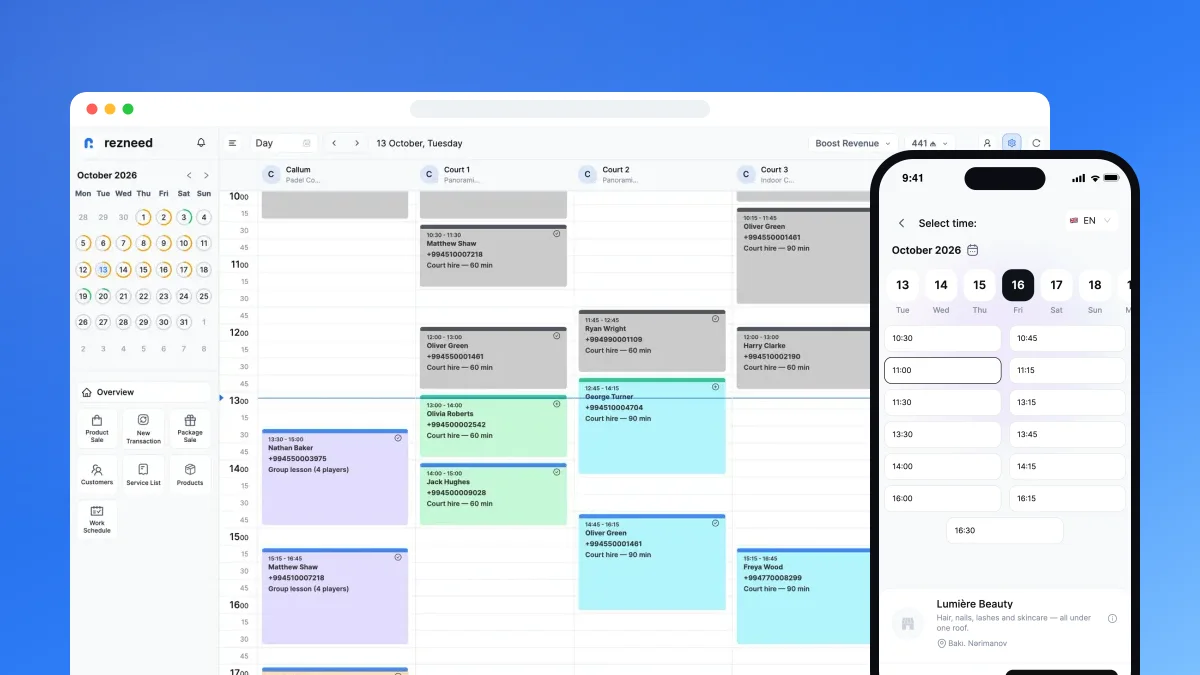
You can import clients from the phone book in the mobile app, and the rest land on the client card with each appointment. The calendar shows a column per stylist, and you can drag an appointment to another time. The booking link (link.rezneed.com/yoursalon) is ready as soon as you open an account; clients book without an app or a password, and confirmations and reminders go out from your own WhatsApp number.
Our team helps with setup and moving your data on every plan. To compare the notebook with software, see the switching page.
Start the switch this week: try Rezneed free for 45 days, no card required.