Messy staff schedules? Hours, breaks and holidays in one place
As a team grows, shifts, breaks and holidays get harder to track. Rezneed's schedule shows everyone's hours and only offers free times for online booking.
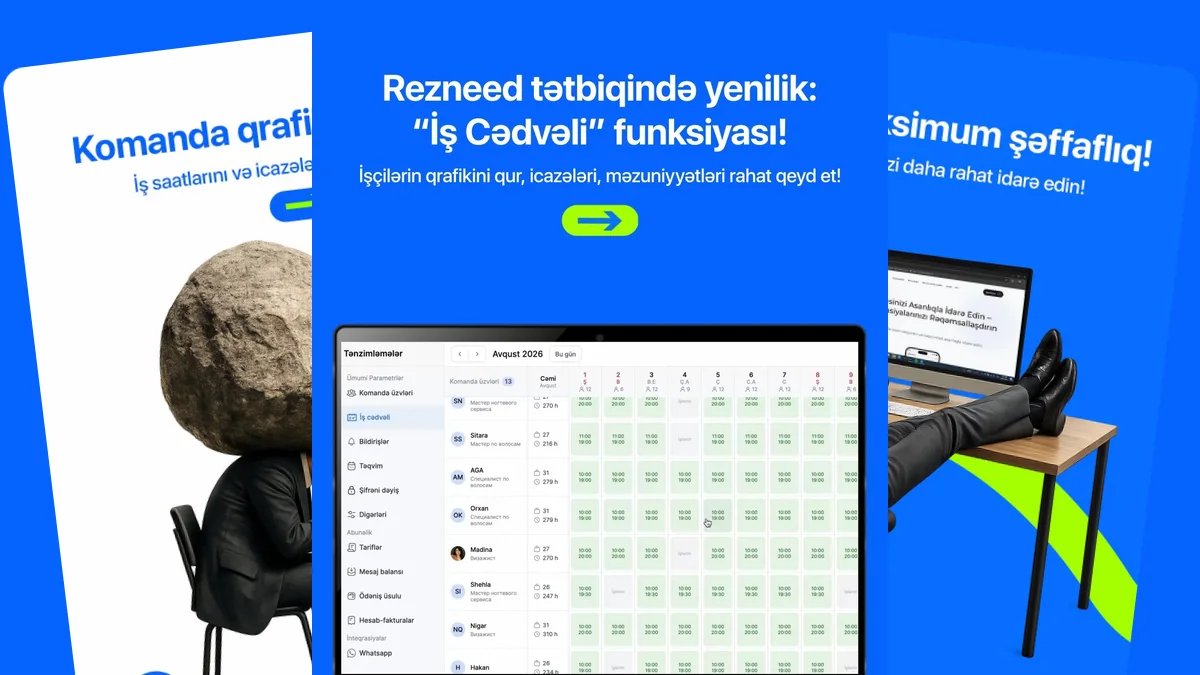
As a team grows, keeping track of schedules, shifts and time off gets harder and harder. Information lost between Excel sheets and message threads becomes extra work for managers and staff alike.
In a salon with three specialists, the schedule can live in the receptionist’s head. But with ten specialists, two locations and shift work, one mistake wrecks the whole day: the specialist is on their day off, and the client who booked with them turns up anyway.

What goes into the work schedule
- Working hours and shifts — for each person, separately for every day of the week.
- Breaks — lunch or a technical break; that time is closed to bookings.
- Exceptions — days off, sick leave, holidays. You enter it once and the calendar adjusts itself.
Everyone’s schedule is visible in one table, and any change shows up in both the calendar and the mobile app the moment it’s made.
Online booking follows the schedule
This is the most important part: on your online booking link, clients see only the times when a specialist is actually working and free. Booking a specialist who’s on holiday, or landing in a break, isn’t possible. You can also set a minimum notice time for each person: for example, at least 3 hours ahead for a colourist.
Who sees what
The schedule is there for transparency, but not everyone should see everything. Rezneed has 4 roles and 13 per-person permissions: a specialist can see only their own calendar, a manager can manage everyone’s schedule, and the owner can oversee everything. More on this: Roles in Rezneed: who sees and does what.
Specialists stay in the loop too
In the mobile app, each specialist sees their own day and gets a notification on their phone when a new booking comes in. When the schedule changes, there’s no need to call them or send a separate message.
3 tips for setting up the schedule
- Set up your usual working week first, then add the exceptions. You don’t have to fill in every day by hand.
- Enter holidays in advance. If a holiday two weeks away is entered today, nobody can book those days.
- Don’t forget breaks. With no break in the schedule, online booking will sell the specialist’s lunch too.
There’s more on team management on the Team page. To set up your own team’s schedule, try Rezneed free for 45 days.