Free online booking system: step-by-step setup
How to set up online booking for free: what to prepare, where to put the link, confirmations and reminders, the first week and what to check behind “free”.
You don’t need to commission a website, hire a developer or set aside a big budget to take bookings online. In one evening you can set up your services, team and opening hours, and take your first booking from Instagram the next day.
This guide covers what to prepare, the setup step by step, the first week and the questions worth asking before you pick “free” salon booking software.
What “free” actually means: five questions
Booking tools are priced in different ways: a limited free plan, a free trial, a commission on each booking or messages charged separately. None of these is bad in itself, but ask before you commit:
- How long does the free part last, and what happens when it ends — are you charged automatically, or do you decide?
- Is there a commission per booking or per new client?
- Are reminders free, or is every message charged?
- What are the limits on staff and locations?
- Do your clients see other businesses advertised on your booking page?
The answers tell you what you’ll really have paid by the end of the year.
What to prepare first
Write this down on paper and the setup takes half an hour:
- Services: name, real duration, price. Your 15–20 best sellers are enough for online booking. How to structure them: salon price list template.
- Team: who does which services.
- Hours: each person’s schedule, breaks and days off.
- Rules: how late clients can book and how late they can cancel.
Setup, step by step
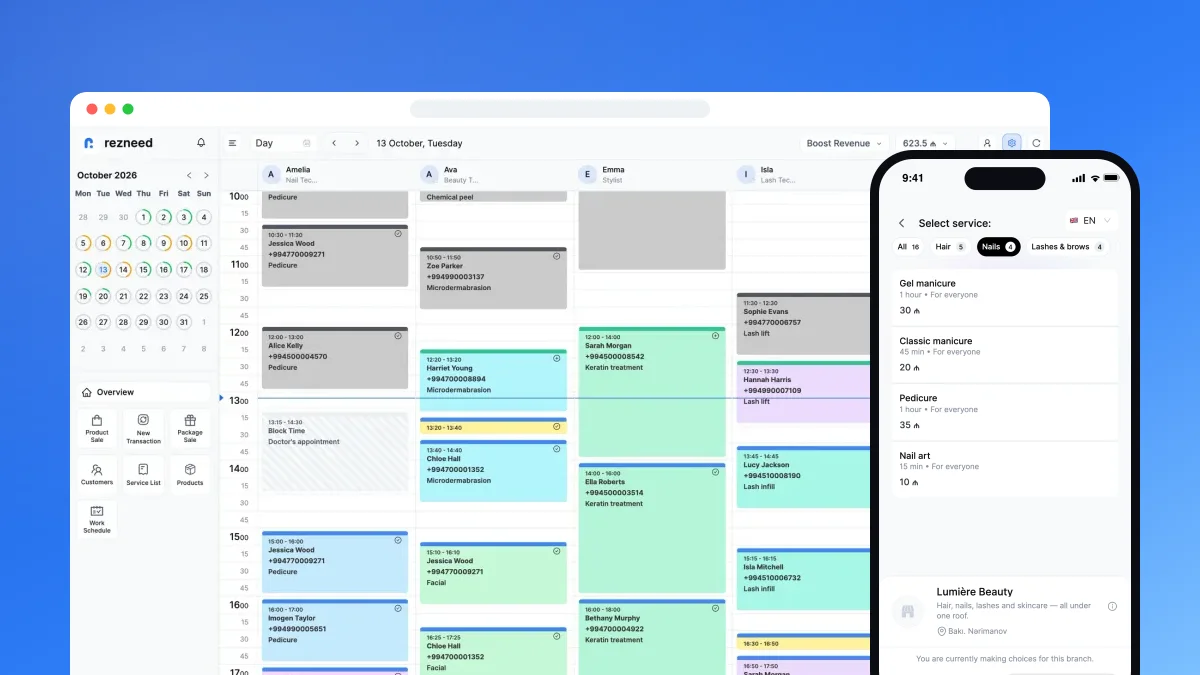
1. Add your services. Duration is the key number: the online diary works out free slots from it.
2. Set up your team and schedules. Link each person only to the services they actually do. Enter holidays and days off in advance — otherwise clients will book someone who isn’t in.
3. Set your booking rules.
- Approval: for the first few months, manual approval is safer — you see every booking. Switch to automatic once things have settled.
- Minimum notice: for example 2 hours, so nobody finds out about a client ten minutes before they walk in.
- Cancellation cut-off: how late clients can cancel themselves. For ready-made wording: cancellation policy generator.
4. Test it yourself. Open the link on your phone, make a booking, then cancel it. See exactly what your clients see.
5. Put the link everywhere:
- Your Instagram bio — the most important spot. Add “Book online ↓” to the bio text.
- A link sticker in Stories and a dedicated “Book” highlight.
- Google Maps — the “website” field of your business profile.
- WhatsApp Business — the profile link and your quick replies: “You can see free slots here: [link]”.
More detail: Instagram booking link.
6. Turn on confirmations and reminders. A confirmation the moment the booking is made, a reminder a few hours before the appointment. It’s the cheapest way to cut forgotten appointments. Ready-made wording: WhatsApp reminder messages.
Three common mistakes
Switching everything on at once. Eighty services, the whole team and automatic approval on day one. A wrong duration or the wrong stylist only shows up with the first client. Start with your core services and widen the list week by week.
Hiding the link. The link exists, but it’s buried deep in a website or behind a “more” button. Clients won’t go looking for it. Keep it where they already are: your bio, Stories, Google Maps, the end of every reply.
Keeping two diaries. Online bookings in the software, phone bookings in a paper book — that’s two clients for the same slot. Every booking belongs in one calendar.
The first week
- Tell your regulars: “You can now book with us online” — one message with the link.
- Keep answering the phone. Some clients are used to calling; put phone bookings into the same diary, not a paper book.
- Check every booking: are the durations right, is the right person booked?
- Fix durations at the end of the week. The first week is when you learn how long things really take.
The full switch-over plan: from paper diary to online booking.
How Rezneed handles it
To be straight with you: Rezneed isn’t free forever. You get a 45-day free trial with every feature, no card required, and it doesn’t turn into a paid plan automatically: you choose a plan when it ends, and your data is kept. After that, Single is 29 ₼ a month for one person working alone (WhatsApp number included), and Basic is 49 ₼ a month (3 staff, 1 location). There’s no commission on bookings and no shared catalogue that shows your clients other businesses — your booking page shows only your business. Every plan is on the pricing page.
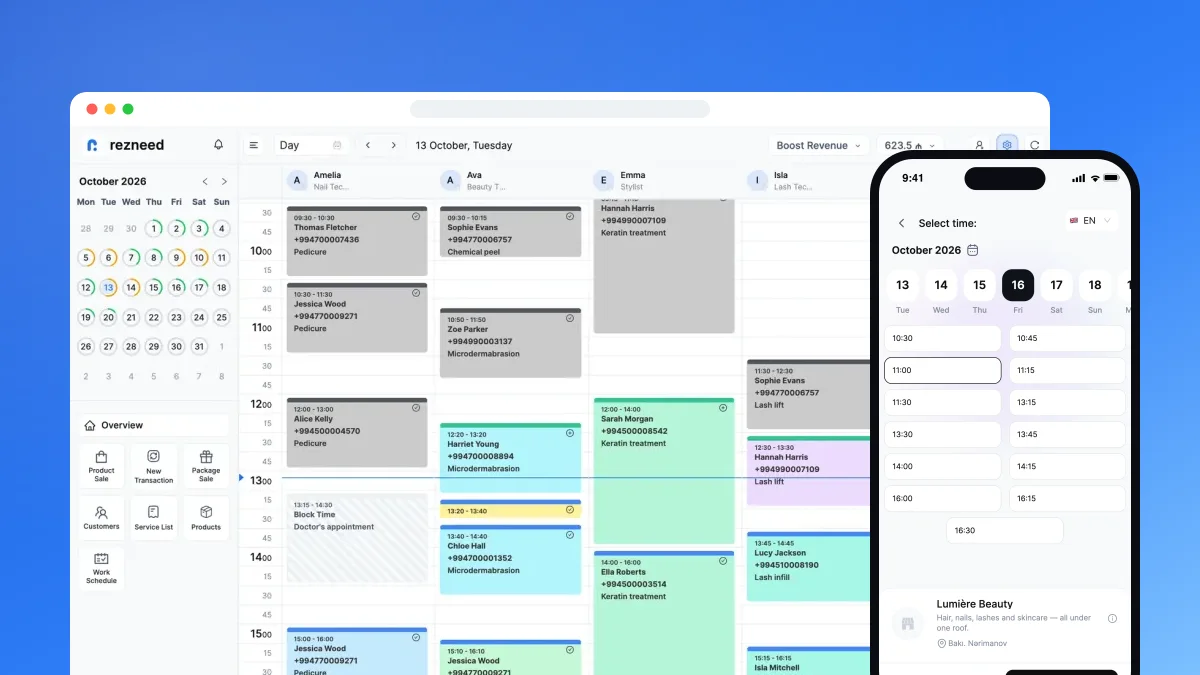
Your online booking link is ready as soon as you sign up. Clients choose a location, service, specialist and time, then enter their name and phone number — no app and no password. The booking page works in 6 languages, English included.
Automatic confirmations and reminders go out from your own WhatsApp number and don’t use your message balance. A number is included on Single, Premium and Business; on Basic it’s an add-on at 15 ₼ a month per location. The 500 free messages every new account gets are for campaigns and reminders you send manually.
Set it up tonight and take your first booking tomorrow: start your 45-day free trial. No card required.